
Porting refers to the process of moving a certain set of phone numbers, otherwise known as DIDs (direct inward dialing), to a different carrier like Vodacom, Verizon, etc.
Aura offers porting services to customers through the AuraConnect portal, which is also known as TCAP and managed by our carrier/upstream partner PingCo. When porting, we provide a list of the customer’s numbers and additional information to PingCo (historically, we worked with Sippio), who then make the port request of the customer’s existing carrier. Porting can be complex or drawn out for a few reasons, but mainly because the customer’s existing carrier has the ability to reject a port request due to issues in the submitted paperwork and it’s a highly regulated process which requires different paperwork in different countries.
This knowledge base article discusses the backend of determining if porting is in scope and how to create the associated porting ticket in Hubspot. Please ensure both of these steps are complete before reading on.
Initial Customer Documentation Request
When initiating a port for a customer, we need to:
- Inform them of the terms and conditions,
- Request signed LOAs (attach templates to the email),
- Request a copy of a recent carrier invoice dated within the last 3 months.
- **Request a copy of the Customer Service Record (CSR) if you expect this to be a complex/large port as it may help to have this on hand. If it wasn't already confirmed during project intake, please also ask the customer to confirm that the current and target setup is "Direct Routing" or "Operator Connect." Brette has usually gathered this information from the outset so we rarely need to ask the customer directly, but PingCo will usually ask for this information after the request has been submitted.
- ***If the port is to be larger than 1,000 numbers, let them know that it will have to be broken into different port requests as that is PingCo's limit.
Please share this language or similar until an initial email template is created:
Hello,
As discussed on our call, please find attached a partially populated LOA template(s). Please make sure to include all telephone numbers you wish to port, the relevant Billing Telephone Number (BTN), any PINs (if applicable), and provide an electronic signature. Please also provide an invoice dated within the last 3 months from the losing carrier. It is important that the name of your business, address, and account number (separate from BTN), exactly match what is listed on the invoice or the port may be rejected.
Please also note the following terms and conditions:
While you are asked to provide your preferred port date in the LOA, port dates are subject to availability and acceptance by the carriers. Once we have gathered all signed LOA(s) and previous invoices, we will submit the port request and it will first undergo pre-port validation by the upstream carrier, and ultimately be submitted to the losing carrier. Only after the port request is accepted by the losing carrier will the port date be confirmed. Any request to reschedule after submission to the losing carrier will incur an emergency fee for cancellation, withdrawal, return, or retargeting.
Additional terms and conditions can be found here: Porting and Number Order Terms & Conditions [I do not have access and they may neither]. Feel free to reach out if you have any questions or need further clarification.
Below are some additional details about the documentation needed from the customer:
Signed LOA:- Country LOA templates are saved here.
- Typically, we like to provide a LOA in Word format to our customer with some basic information prepopulated, like their status as a business, name, address, and requested port date (which has usually been discussed on a launch call). They also need to fill out their Current Service Provider, Current Account number, Numbers to port, Billing Telephone Number (BTN), Pin Code (if mobile numbers included), and provide an e-signature (text will not do) and date.
- If the customer is porting a toll-free number(s), they will need a separate LOA per number. Toll-free numbers are 800, 888, 877, 866, 855, 844, and 833 prefixes.
- Typically, we like to provide a LOA in Word format to our customer with some basic information prepopulated, like their status as a business, name, address, and requested port date (which has usually been discussed on a launch call). They also need to fill out their Current Service Provider, Current Account number, Numbers to port, Billing Telephone Number (BTN), Pin Code (if mobile numbers included), and provide an e-signature (text will not do) and date.
- Copy of recent invoice dated within the last 3 months:
- Key takeaway here: all information must exactly match the signed LOA. If it doesn’t, we risk a port request rejection by the current carrier.
Once you have collected and verified the information, you are ready to submit the LOA, invoice, /and CSR to PingCo. Please share this document with the customer and wait for their confirmation before moving forward.
Submitting the Port Request:
If this is your first time logging into the Aura Connect, or "TCAP" platform, at https://connect.weareaura.com/ui/ first check with Brette so he can grant you access on the back-end rather than you trying to register yourself. Next, click on “Sign in with Microsoft.”
In the top lefthand search bar, select the customer in the dropdown menu for which you are submitting the port request (default is “We Are Aura”). If the customer does not exist, you will need to create a profile for them. If they exist, please skip ahead to the "Submission" section.
Creating a Customer in TCAP:
You will need the following information from the signed purchase order (PO):
- Is the customer direct or under a partner? You'll need to put them under their respective partner instead of "We Are Aura" if the latter.
- The customer's main service address: If you only have the company's registered address, and this does not align with their service address, input the registered address for now. You can go back later and input the actual service address once this is in hand.
- The default plan: "US Pro bundle" on the quote, for example. If the customer has multiple plans included in the PO, just choose one knowing you can go back in later and add more.
- Is the customer Direct Routing or Operator Connector? Ask Brette when in doubt, but once again it's fine if you don't know since you can go in later and add additional.
With this information, navigate to "Organizations" > "Companies" in the lefthand toolbar > "+ Companies" blue button at the top. Input the information from above and then "Create"
Once you create it, the company dashboard will look like:
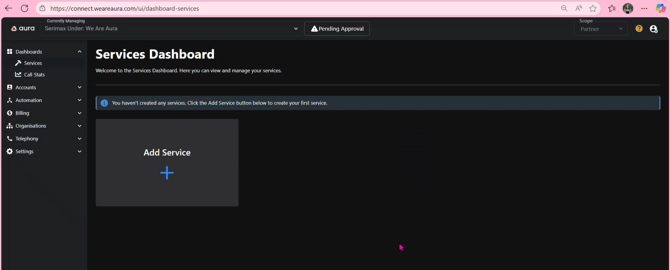
You'll then need to "approve" the company by clicking on the top button.
From there, go back to the lefthand toolbar "Organizations" > "Addresses" and input the address information.
If the quote includes multiple plans, navigate to ""Organizations" > "Companies" > "Billing & Invoice" second tab at the top. Add additional plans in the first field. Always make sure the billing day is the 1st of the month (fourth field from the top).
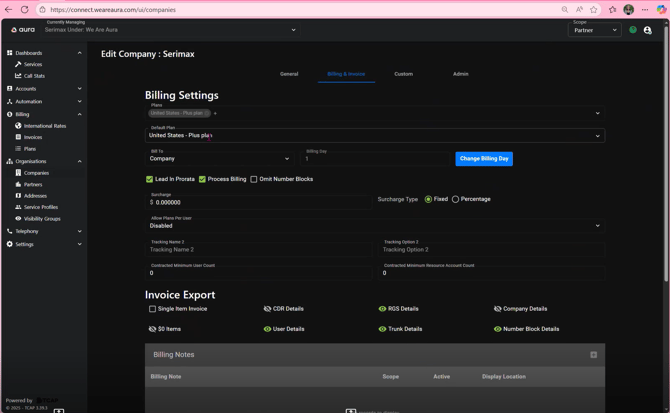
You're done with setting up the customer profile at this point. However, this is a good time to add the customer's "Global Admin" user so that tenant pairing can be completed right away. Tenant pairing typically takes place soon after the customer launch so it's possible the engineers/Brette already beat you to it, but if you have this user identified and their contact information, feel free to add it at this point. Just know the link sent to the Global Admin will only be active for 1 hour so they need to act quickly.
"Settings" in lefthand toolbar > "Admin Accounts" > "+Admin"
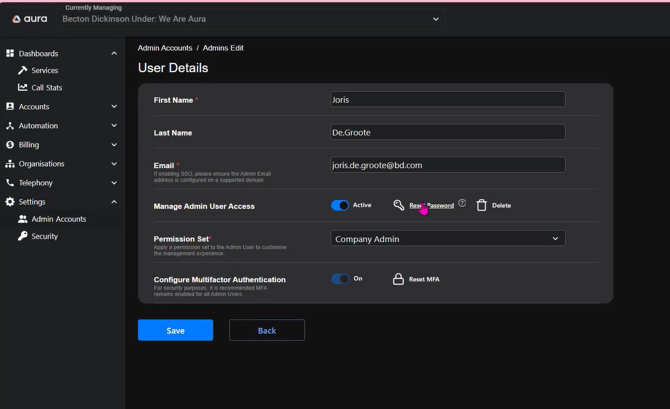
If the customer doesn't see the message in time, click on "Reset password," and will generate a new registration link for them. If they still can't find the prompt email, encourage them to check spam.
Submission:
Once the customer has been created in TCAP, or if the customer profile already exists, navigate to TCAP.
- In the top lefthand search bar, select the customer in the dropdown menu for which you are submitting the port request (default is “We Are Aura”).
- Next, navigate to “Telephony” in the lefthand tool bar > select “Numbers” > “Bring Existing Numbers” (3rd tab at the top).
- Complete the following fields:
- Carrier
- Upload the copy of the recent invoice under “Choose File”
- Preferred Porting Date: US port dates are always 2 hours and usually start at 11 or 2 pm EST.
- Authorized Contact Full Name: Input your name, not the customer’s.
- Authorized Contact Email: Input your email, not the customer’s.
- Authorized Contact Number: Input your work number (you can find this in Teams > Calls).
- Numbers to port: If numbers are part of a range (…-7460, -7461, -7462, etc), you can input the starting and ending number in the “From” and “To” fields respectively. If numbers are not part of a range, enter the number twice in the “From” and “To” fields.
- I require the number(s) to be loaded into the portal as soon as they have been validated: Check this box.
- Comments: “Please inform me if the requested port date is unavailable as we will need to seek customer approval for a different date.”
- Terms & Conditions: Check this box.
- Once submitted, an automated confirmation email will be sent to the Customer Success inbox. Please be sure to share the LOA as an attachment on that thread right away, as there is no field to upload the LOA within the TCAP portal (only the previous invoice). Doing so will reduce the processing time instead of waiting for PingCo to circle back and request the LOA before doing internal validation.
Next Steps:
PingCo will then circle back three times.
- First, one of the team members will provide confirmation that they've working on our port request. They may at this point note they cannot honor the requested port date and time. If sufficient lead time (3-4 weeks) was granted, escalate to Brette. If the rejection seems reasonable, then we have to inform the customer of the change and request their preference for any other port dates.
- There may be an additional communication soon after this step where they inform us that the port requests have failed pre-port validation, or their check for completion/accuracy. Usually, this means an account number may not match or some other documentation issue. However, in rare instances, it may be because a number(s) is not portable due to the geographic location/rate center of the numbers in question. In this case, the alternative is to purchase new number blocks and initiate call forwarding. Check with Brette if this occurs!
- Next, they'll confirm they've submitted the request to the losing carrier. At this point, inform the client of the status update through the Hubspot Help Desk (important - do not send from the CRM ticket) "porting@weareaura.com" email and send the customer a "tentative" calendar hold for the the requested port date and time. For further instructions on Hubspot communications, check this guide [insert link once created].
- PingCo will circle back the third and final time to inform us if the carrier has accepted or rejected the port request. No justification is usually provided by the losing carrier for the rejection so review all documentation thoroughly to ensure it matches, no typos, etc. If accepted, we'll want to update the calendar hold so that it's no longer tentative. Either way, inform the customer once again of the change in status.
Important to Note:
- There can only be one active port request per account number/CSR (customer service record). This means that if the customer later wants to add numbers to their port request, it will likely have to wait until the original port request is complete before starting a new one.
- Numbers are only portable if still with the customer. For example, if a customer has cancelled their subscription with the losing carrier and realizes later they still need to port a couple numbers, these numbers will not be portable as they are back under the ownership/purview of the losing carrier (and do not go back into a public use pool).
- We are fined $500 if we request a new port date or cancel after the request has been sent by PingCo to the carrier team.
- Losing carriers are mandated to reply within 10 business days to a port request. Make sure to track how many days have gone by in case an escalation is needed.
Making Number Assignments in TCAP:
- After receiving confirmation of the port date, it is important to verify if the customer is already using Microsoft Teams or not. If they're not, user assignments can and should be made in TCAP in advance of the port date. If the customer is are already on Teams, you will still need to collect the user assignment list from them in advance, but won't be able to make assignments until the port window as doing so could affect their current call flows. Sometimes, the user assignments spreadsheet has already been shared by the customer before/as porting discussions began, so make sure to check the files and/or with Brette before reaching out to the customer.
- There are three other pieces of information that are especially helpful at this stage:
- Knowing how many user assignments there will be: If this is a large port with several assignments, it is probably easiest to share with the customer the CSV of available numbers directly from TCAP (Accounts > Users > CSV Update) to input user assignments as reuploading this CSV will be easier than manually input for each user. If this is your preferred route, share it with the customer and ask them to please not filter or change anything about the spreadsheet and not use any "+" or spaces in the numbers as this will result in a failed CSV upload later.
- Knowing if the customer is "Operator Connect" or "Direct Routing:" The customer's status is visible on the "Services Dashboard" interface when you select the client within TCAP. If it's an Operator Connect client, the customer will only have to complete name/number assignments in the spreadsheet. If it's a Direct Routing client, they'll also need to complete the columns for "Dial Plan" and "Voice Policy."
- Knowing if YakChat SMS will be activated for certain users: If so, we'll want the customer to provide us with "UPNs" (emails) for each user and it's typically easiest if this information is submitted either in the user assignment list or with it (in case of a direct CSV upload).
- Once you have the above information, make sure to gather the user assignment list (whether a TCAP CSV or just a spreadsheet created by the customer directly) at least one week in advance of the port date so you have time to circle back if there is missing information and/or complete assignments in TCAP ahead of the port date if the customer is not already on Microsoft Teams.
To make manual assignments:
- Click on the pencil icon at the far right of each user you want to assign a number to. If a user has two entries or rows, go with the one that has an email address.
- Choose the correct number from the user assignment list from the drop down menu in TCAP. The Voice Policy is usually "US-International" and the Dial Plan is "US-Standard" if the customer is a Direct Routing set up. If the customer is Operator Connect, no voice policy or dial plan selection is usually needed.
To make assignments via CSV:
- Click on the "CSV Update" blue button at the top left of the client's "Accounts" > "Users" page and upload the CSV. If rejected, make sure to review for any changes, added filters, or variant formatting from the original "CSV Download" file.
Common issues when making assignments:
- If you go to make an assignment but can't, it is typically because the customer has not added a user license on their end. It will show "Not Licensed" under the Telephone Number category, no information under "Dial Plan," and the "Ø" symbol under "Voice Policy" if this is the case. Let the client know that you can't make the assignment until they do so.
The Day of the Port:
- If the user assignment list hasn't yet been uploaded to TCAP because the customer is already using Microsoft Teams, make sure to have this ready to go for when the port begins.
- Once the port begins, start calling the numbers in the user assignment list from your Teams account every 10 minutes to see when they drop. The numbers will be temporarily dead until picked up by the new carrier and/or until you complete the user assignments if the customer is already on Microsoft Teams. Once assignments have been made, start calling the numbers again every 10 minutes until they start ringing. Once they do, it also helps to have someone either in the US or UK call from their personal phone to see if they get different results over the phone.
- Once the port is complete, PingCo will send an email confirming which numbers ported. At that point, please alert the customer and share this document.
Common Port Day Problems:
- If you can't make a number assignment, please first refer to the section above "Common issues when making assignments."
- Another potential issue is that the customer has not set the correct usage location for the number (ex: it's a GB number but it says "US" under the "Usage Location" column. The customer will need to make this change on their end in order for us to make the number assignment.
- However, if the user is licensed, a number has been assigned, the usage location matches the number, and the test call is still not going through, try removing the number from the user and once this has updated, go in and unallocate the trunk from the number. To do this, reference this kb article [drop link to Project Completion SOP once published]. Then, once the trunk unallocation is no longer pending, reassign the trunk and then reassign the number to the user.
- At this point, you might run into the problem where two additional fields pop up (Operator Connect Calling Profile and Telephone Number Usage) that you have to input information for or you won't be able to save the trunk reallocation:
.png?width=670&height=334&name=Question%20(1).png)
-
- Select the appropriate country for the "Operator Connect Calling Profile" and "Calling User" for the "Telephone Number Usage."
- [Add in here what happened with FANUC Wave 2- why did it not port over within the window and how to resolve]
Contacting PingCo:
|
Department |
Email Contact |
Purpose |
|
Support |
Opening new support cases |
|
|
NOC Team |
Contacting the NOC team directly |
|
|
Accounts |
Billing and account inquiries |
Support Ticket Escalation (Porting Escalation Below):
If you need to escalate a support ticket, please follow the process below:
When to Escalate
- A Severity 1 incident has occurred, and the SLA has been breached
- Ticket has been raised via emailing support@pingco.cloud or calling and an SLA has been breached
- AUS - +61 3 8592 8806
- UK - +44 2045 790890
- US - +1 813 6781988
- Ticket has been raised via emailing support@pingco.cloud or calling and an SLA has been breached
- An appointment commitment has been missed
- A case has exceeded SLA with no meaningful update
How to Escalate
- Email or call the Level 1 contact for your time zone (see below). Use "Partner Escalation" in the subject line—do not simply CC into the ticket.
- Allow time for investigation before escalating further.
- Do not add all escalation contacts to the one email, give time to the escalation contact to investigate the issue before escalating to the next level.
- If no response within 2 hours or if unsatisfied, escalate to Level 2.
Escalation Contacts
|
Region |
Level 1 Contact |
Phone |
|
|
US |
Garry Ballera (Support Team Lead) |
+1 2067466801 |
|
|
UK |
James Moreno (Support Team Lead) |
+44 20 4525 0993 |
|
|
AU |
Kevin Gabuya (Senior Support Engineer) |
+61 3 8592 8882 |
If further escalation is required:
|
2 AU Timezone |
Network Engineer |
Jessie Cassar |
P: +61 3 8592 8885 |
|
2 UK & US Timezone |
Chief Engineer |
Steve Hutchinson |
P: +44 1614136106 |
|
3 |
Chief Operating Officer |
Gerben Graske-Borst |
P: +61 3 8592 8899 |
Porting Escalation:
For porting and number order escalations, please contact porting@pingco.cloud and follow the process:
- Email or call Level 1 contact using "Porting Escalation" in the subject line.
- Allow time for investigation before escalating further.
Porting Escalation Contacts
|
Level |
Contact Person |
Phone |
|
|
Level 1 |
Monique Coelho (Service Delivery Coordinator) |
+61 3 8592 8887 |
|
|
Level 2 |
Kate Maminta (Carrier Coordinator) |
+61 3 8592 8886 |
|
|
Level 3 |
Alisha King (COO) |
+61 3 8592 8889 |
For any general support requests, please continue to contact support@pingco.cloud.
Post-Port Tasks:
- Please refer to the kb article here [insert Project Completion article once live] to unallocate trunks to numbers that do not have users assigned. Please also inform Finance once the port is complete and how many numbers ported so they can bill appropriately.