
As the Sales team close deals, the following process is followed in Hubspot:
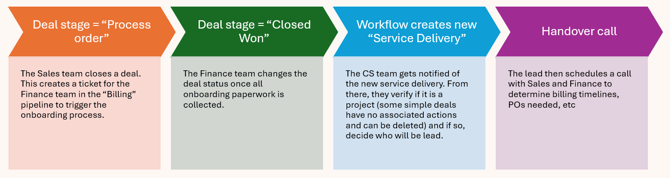
The Customer Success team takes on ownership in the third and fourth steps of the customer journey outlined above. A more detailed overview of the these stages and their related processes are below:
Concurrent Process #1: Hubspot
When a Hubspot deal stage status is changed to "Closed Won" for either Renewal, Simple, or Project Deals, it triggers a workflow that automatically populates a new record in the Service Deliveries object. At this point, certain members (currently Brette and Nikita) receive an automated email notification informing them of the new Service Delivery.
At this point, Brette will then confirm if the service delivery is, in fact, a project or support delivery and who should be the lead. Sometimes, simple deals do not require any action by the CS team (if it involves a license or piece of equipment being purchased or the like) and the service delivery can be deleted.
The lead then needs to schedule a handover call with Sales and Finance to understand how billing will work (up front or in milestones) and what POs will need to be issued. At this point or before, it is also important to review the scope and see if porting will be involved.
To review the scope and understand if porting is within scope, navigate to the new Service Delivery record and click on the associated Deal in the right sidebar. Once in the Deal's record, locate the quote or uploaded PO attachment on the right sidebar and click into it to read through the scope for mentions of porting.
If porting is within the scope, an associated "porting" ticket will need to be manually created. To do this, navigate back to the Project Delivery record. In the right sidebar, locate the "Tickets" section and click "+Add".
To populate the new Porting ticket fields, select the following:
- Pipeline: Porting
- Ticket Status: Ideally, should be "New." However, if the deal was delayed in officially closing in Hubspot, and project launch has already begun, select the correct status.
- File upload: Only complete if the signed LOA and copy of a recent invoice have already been collected in the event the project launch is already underway. Otherwise, leave blank for now. The LOA and invoice will need to be uploaded once received.
- Company and Deal: Associate with appropriate records.
*An additional porting ticket may be created later down the road once PingCo confirms receipt of a porting request and copies porting@weareaura.com. They don't always do this, but when they do, the Hubspot workflow automatically generates a ticket in the porting pipeline. At this point, feel free to delete one of the duplicates.
**If porting is involved, reference this internal knowledge base article for a checklist of what items to gather from the client.
Concurrent Process #2: Timeneye
Timeneye enables us to understand trends in time utilization to better predict profitability. It also has intuitive reporting features that can be used in client service reviews. Part of the responsibilities of the project lead and/or Nikita during project intake is to create a project record in Timeneye and assign all relevant members once Brette has confirmed the service delivery is legitimate.
To do so, first ensure Timeneye is an integrated app within your Teams lefthand toolbar. Click on Timeneye, navigate to "Projects" in the lefthand toolbar, then select the "New Project" button in the top righthand corner.
To populate the new project fields, select the following:
- Make the Project Public: No need to check this box unless everyone with a Timeneye account needs to track their time on the project.
Members: Select all relevant members from the drop down (no need to add Hourly Rate). - Phases: Select the "Copy phases from" > “From existing project” > “Phase Template Project”
- Tags: Select “Require at least one tag for each time entry”
- Budget: Our projects are usually “Fixed Fee” and have a "Time budget." To identify both, go back to the signed quote. Quotes rarely have clean time budget breakdowns, but look for mentions of “Project Management,” “Engineers,” or “support” similar and add up the hours you see listed for any row that’s not billed monthly (as these typically indicate a subscription). If labor is grouped under a package in a given row, divide the “Unit Price” by $175 (if a direct customer) or $225 (if through a channel partner) to get a decent estimate for the hours budget.
- Budget resets every month: Only check this if it’s a monthly hours contract like TTC.
- Send email alert if project exceeds 85% of budget: Check this box.
Once project is created in Timeneye, make sure to:
- Check the project budget with Brette.
- Go back into the project > “Edit” in the righthand corner > “Users” top tab > Assign a PM. This person will receive the automated notification should the project exceed the 85% budget threshold.
- Determine major project tasks (upper right tab of project interface). This can come at a later time, but helpful to have filled out so users can begin tracking their time to specific tasks.
Concurrent Process #3: Customer Outreach
It’s possible a customer launch call may have already been scheduled/taken place before the CS team completes project intake. However, if one has not happened yet, the necessary steps are below:
- Understand if this is a direct customer or we are working with a channel partner. If through a channel partner, we’ll want to first schedule an internal kickoff (or just touch base over email) with them to level expectations around customer interaction, timelines, etc. If a direct customer, we can schedule a launch call to do introductions, explain the process, answer any questions, etc.
- Ahead of the launch call, create a folder (or subfolder!) here in the Aura Solution Engineering & Operations folder and start a “Running Notes” document following the same format as others. Plan to go over the following agenda or similar in the launch call:
- Introductions
- SOW review
- Getting started / requirements
- Inform the client that we'll need a global admin present in the following session to pair the tenant. This is the only time we need the global admin permissions.
- If Aura Connect customer, also go over the structure of TCAP setup and what will be needed for E911.
- Timeline / future meeting cadence
- Timezone
- If Aura Connect customer, determine any preferred port dates.
- During the launch and any future calls, make sure to transcribe (if it makes sense to) and take down notes and action items.
- After the call, send out action items in a recap email to everyone involved. Make sure to reference previous action items when you meet again.