
Aura has selected YakChat to provide customers a cost-effective way to have SMS functionality directly in Teams, rather than needing to provide staff with dedicated business cellphones for texting.
To set customers up with YakChat, two concurrent processes need to happen:
10DLC (Digit Long Code):
In order for companies to conduct outreach to customers, the SEC requires that they pursue 10DLC registration. Without 10DLC, companies can still receive inbound texts from their customers but are unable to reply. To complete 10DLC registration;
- Let the customer know in advance of the complexity of the form/general process and set up a meeting to complete the form together with screensharing. It may help to have them confirm certain details in advance, like sample messages and the SMS policy.
- When completing the 10DLC form, pay extra attention to fields like the Sample Messages, Call to Action, and the SMS Policy within the privacy policy on the customer's website. Insufficient information here is often the cause for rejection.
- An example completed 10DLC form can be found here.
- Most customers will usually require "Low Volume Mixed" for the Campaign Use Case Description.
- Submit the completed 10DLC form to Boris (info@yakchat.com). Boris is our account manager at YakChat and we will review for accuracy/completion before proceeding to submit to the SEC.
At the same time, you can get started on the YakChat LOA.
LOA:
Even though we will own the number, YakChat hosts the service, which is why an LOA is needed. To complete this;
- Confirm with the customer what number they want the SMS service hosted on and prepopulate/send the LOA for signature.
- The carrier is always Voxbone/Bandwidth.
- The street address is always the customer's, not Aura's.
- Submit the completed LOA to YakChat. In that submission, tell Boris the company name, address, and how many numbers they're hosting so he can build the customer in our tenant.
- Once all numbers are ported to AuraConnect, let Boris know so YakChat can officially start hosting the SMS numbers. This usually only takes 1-2 hours.
- [Confirm where in process this lies] - Send the link for the YakChat installation guide to the admins on the customer side and let them know that Brette can assist if they need any help
Important to Note:
- Nothing needs to be configured in TCAP to set up YakChat for a customer.
- Once set up, customers can use YakChat SMS messaging without needing the app installed on their devices. However, all messages will appear coming in as Teams messages. If certain staff are heavy business texters, it is recommended that they download the app for better tracking.
- The YakChat General Knowledge Base can be found here and the SMS Messaging-specific articles can be found here.
Ongoing YakChat Management:
Once clients have been onboarded to YakChat, they may periodically need YakChat added or disabled from certain numbers.
To Disable YakChat:
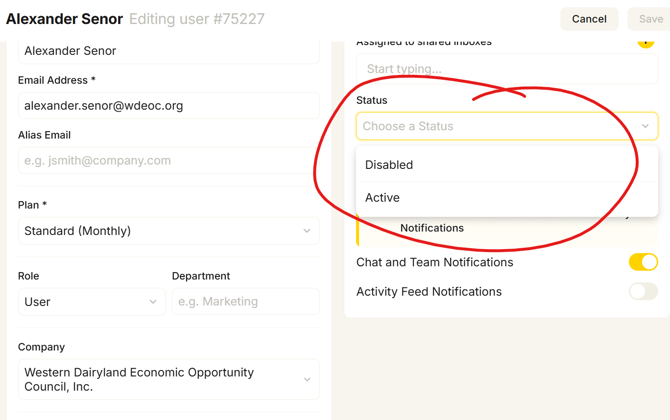
Login to the YakChat portal and identify the user that needs YakChat disabled. Click Edit > Status "Active" dropdown menu > and select "Disable."
To Assign YakChat:
If for Western Dairyland, one of the Clearwater team members will need to assign the user a number in TCAP and submit a signed LOA to Aura for that user. If for a direct customer, we'll need to assign the user a number in TCAP and send the LOA for signature to the customer's designated representative. Once we have collected the signed LOA /and the user is assigned a number in TCAP, we send the LOA to Boris and let him know of the user's name and email address. Please make sure to save the signed LOA to our files as well. Boris will let us know once YakChat has been enabled, after which we can circle back to the customer.
As always, make sure to keep track of these changes for billing purposes!